


Overview
Social login simplifies the registration and login experience by allowing users to authenticate using their existing social media accounts. Instead of creating new usernames and passwords, users can sign in quickly using platforms such as Google, Facebook, LinkedIn, or X.
The ProfileGrid Social Login extension integrates social authentication directly into ProfileGrid login, registration, and profile workflows. It allows administrators to configure social login from one centralized settings page and apply it across ProfileGrid groups.
Prerequisite
Before configuring Social Login, ensure that the ProfileGrid core plugin is installed and activated on your WordPress site. You must also have the ProfileGrid Social Login extension installed and activated, as it provides the required settings to enable social login and configure supported platforms.
How to Configure Social Login
Step 1: Open Social Login Settings
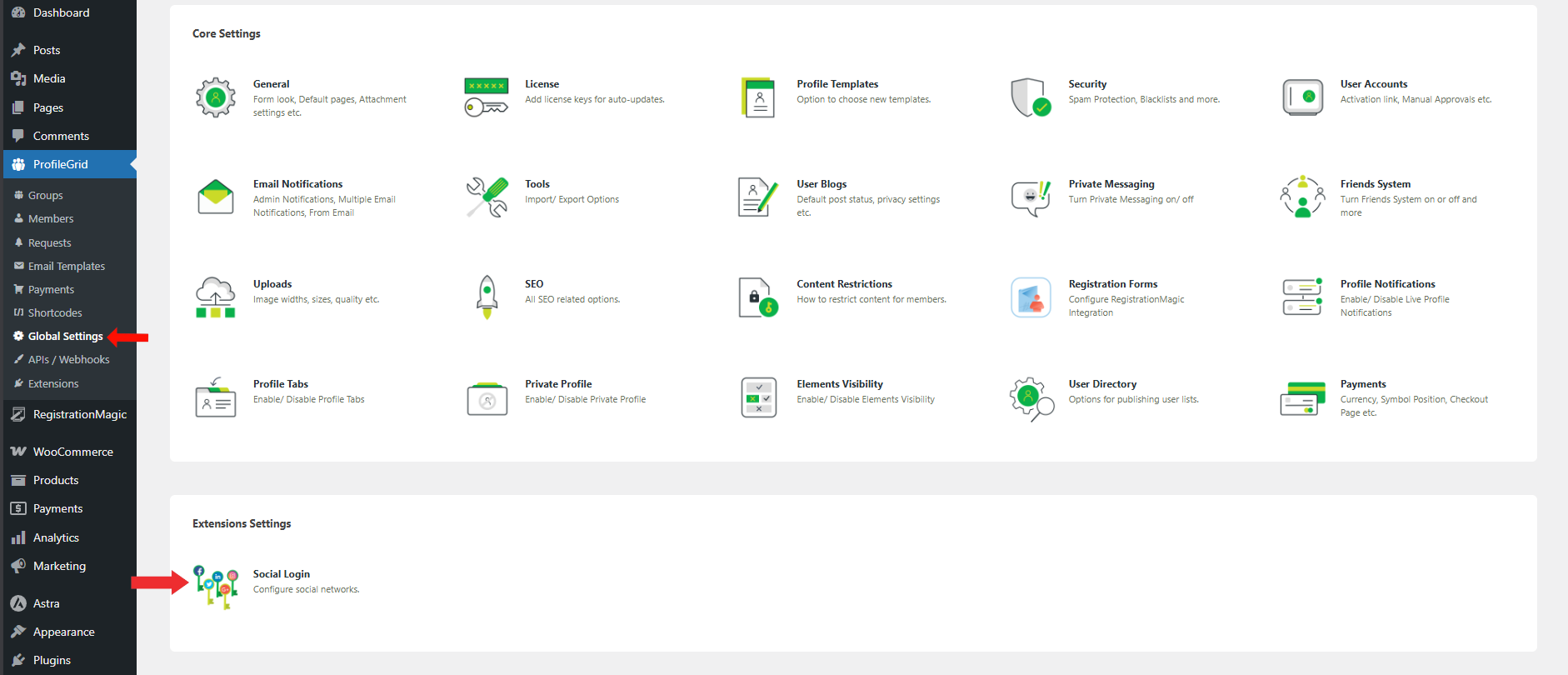
To configure Social Login, open the extension settings from ProfileGrid global settings.
- Go to ProfileGrid → Global Settings from the WordPress dashboard.
- Scroll down to the Extensions Settings section.
- Click on Social Login to open the configuration page.
Step 2: Configure Social Login Settings
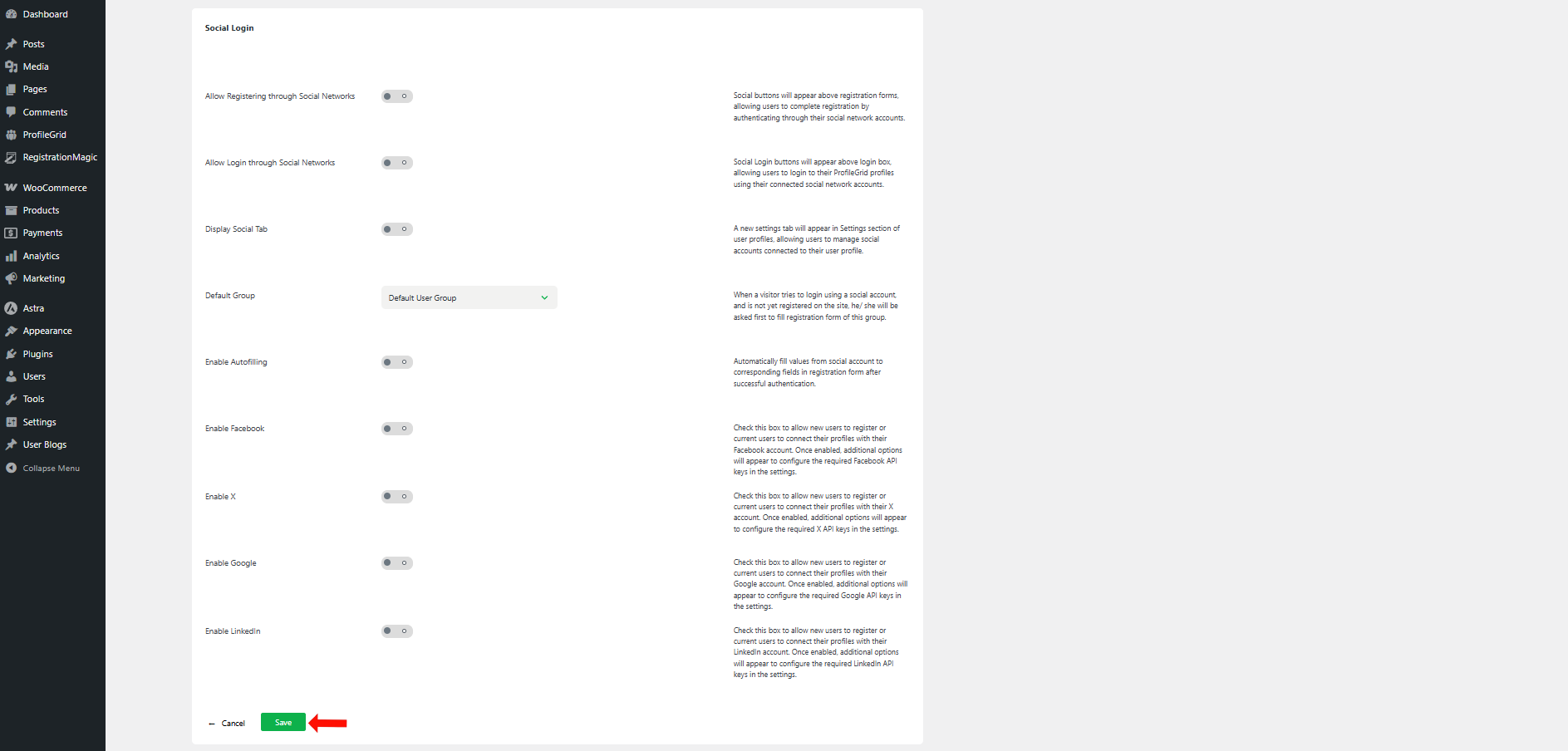
On the Social Login settings screen, you can enable social login for registration, login, and profile connections, and configure the supported social platforms from the same page.
- Enable the main options:
- Allow Registering through Social Networks – Allows users to register using social accounts.
- Allow Login through Social Networks – Allows users to log in using social accounts.
- Display Social Tab – Adds a Social Connect option inside the user’s ProfileGrid profile settings.
- Default Group – Assigns new social-login users to the selected ProfileGrid group.
- Enable Autofilling – Automatically fills registration form fields using available social account data.
- Enable the social platforms you want to offer:
- Enable Facebook
- Enable X
- Enable Google
- Enable LinkedIn
- Add platform credentials (required for each enabled platform):
- Facebook requires Facebook App ID and Facebook App Secret.
- X (Twitter) requires X API Key and X API Secret.
- Google requires Google Client ID and Google Client Secret.
- LinkedIn requires LinkedIn Client ID and LinkedIn Client Secret.
- Copy and use the Callback URLs provided by ProfileGrid while creating the app inside each platform’s developer portal.
After completing the configuration, click Save to apply the settings.
Frontend View
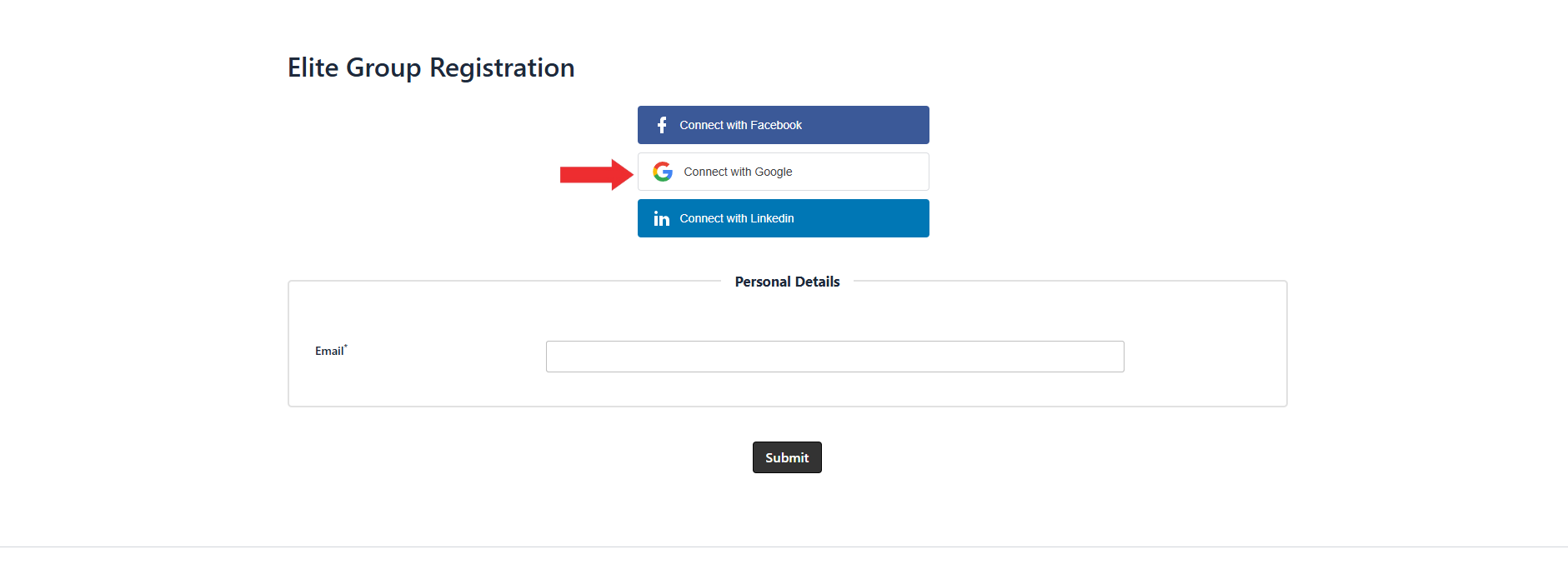
Once Social Login is enabled, Social Login buttons are displayed automatically on the frontend depending on whether the user is logged in or logged out.
Logged-Out Users (Login / Registration Page)
When a visitor is not logged in, Social Login buttons appear on the ProfileGrid registration and login forms. Users can sign up or log in instantly using the enabled social platforms (such as Facebook, Google, or LinkedIn) without manually filling out the full registration process.
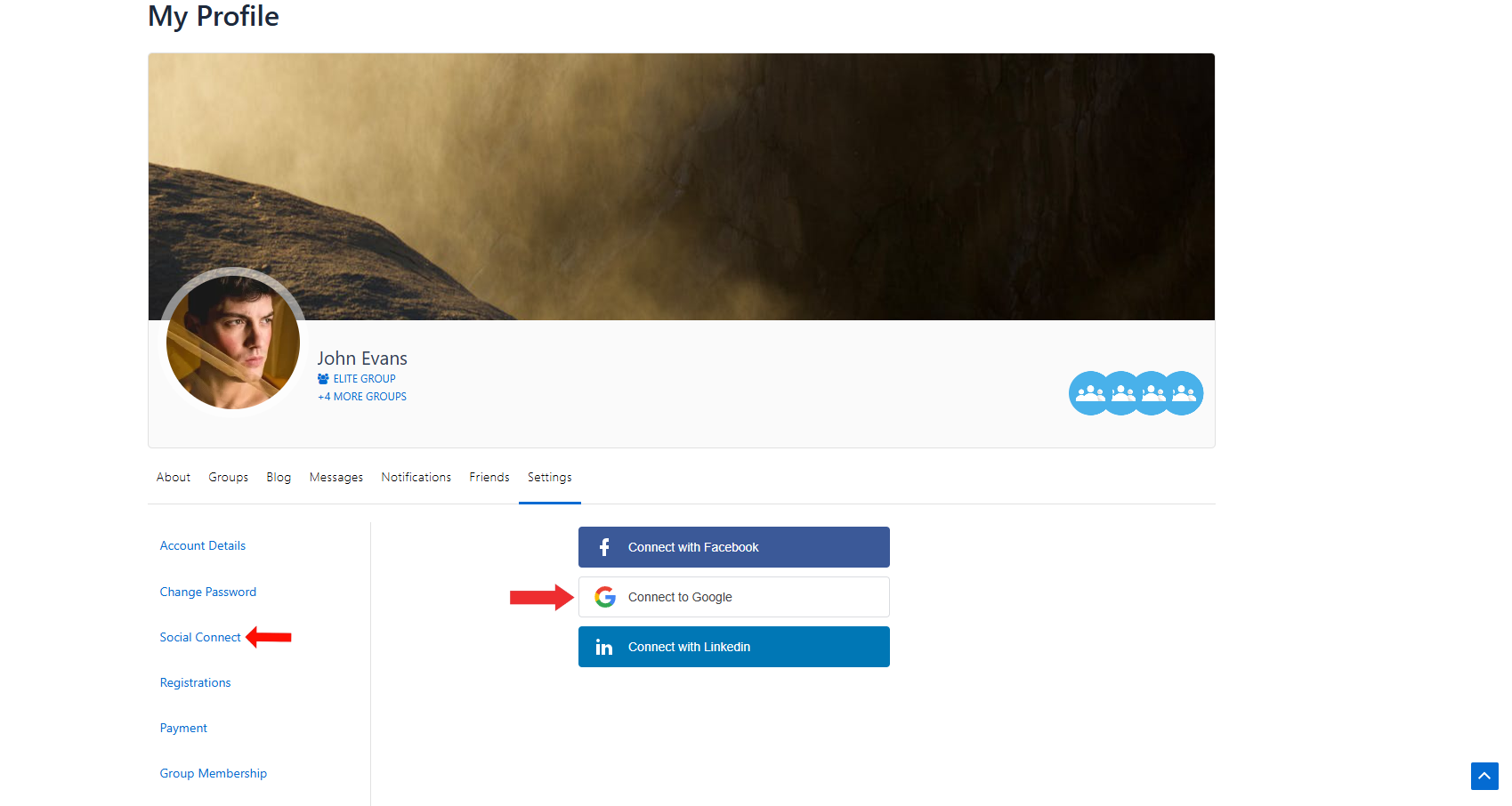
Logged-In Users (My Profile → Settings → Social Connect)
When a user is already logged in, they can manage social account connections from their ProfileGrid profile area. If Display Social Tab is enabled, a Social Connect option appears under My Profile → Settings, allowing users to connect or disconnect their social accounts directly from their profile settings page.
Conclusion
The ProfileGrid Social Login extension provides a simple and reliable way to enable social authentication on your WordPress site. It allows users to register and log in using popular social platforms, improves onboarding, and reduces friction during sign-up.
With centralized configuration, group assignment support, autofill functionality, and frontend integration across login, registration, and profile settings, the extension offers a complete social login solution for ProfileGrid-powered websites.