

This article explains how to enable user profile privacy in WordPress groups using the ProfileGrid plugin. With this setting, administrators can restrict access to user profiles, making sure that only the profile owners can view their own pages. This feature helps enhance privacy and gives users more control over their personal information.
Private user profile settings
You can hide or display user profiles on WordPress.
- Hide Group Members from Other Users: This setting hides all group member profiles from everyone else in the group. Only the individual users can see their own profiles.
- Show Group Members Without Profile Links: This option displays the profiles of all group members, but other users won’t be able to click on the profiles or view their details.
How to make profile private?
Follow the steps give below:
Step 1: Go to ProfileGrid left Menu on your WordPress Dashboard.
Step 2: Next click on ‘Global Settings’ and go to the Global Setting page.

Step 3: Scroll down and click ‘Private Profile.’

Step 4: In the WordPress Private Profile setting, enable the toggle to make all WordPress frontend user profiles private.
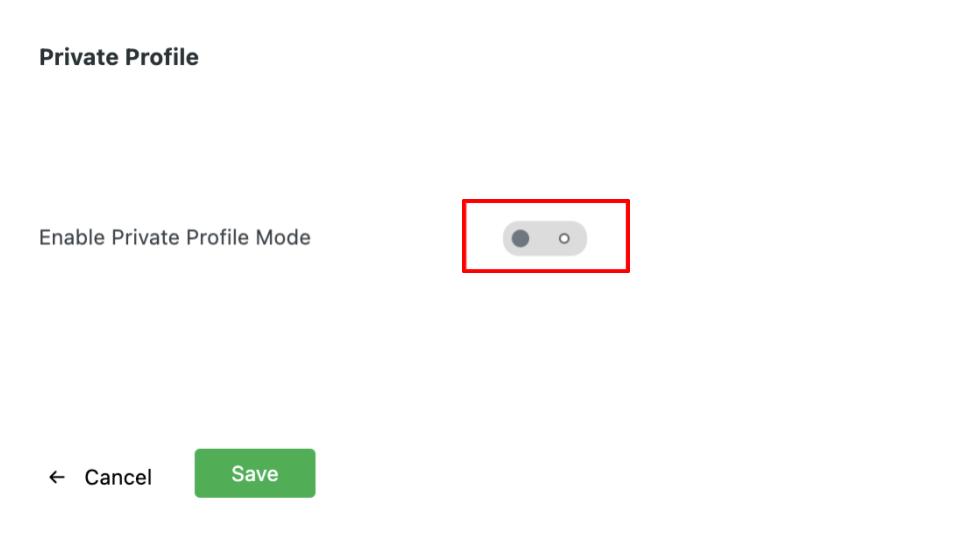
Step 5: Once you enable the toggle you’ll get a text box to enter the message that you want to display if any user tries to explore other profiles.

Step 6: The ‘Display Profile Cards on Group Pages’ toggle allows you to display group member profile cards but the links from the profiles will be removed.
Step 7: Enable the ‘Display Profile Cards on Group Pages’ toggle to display the cards.
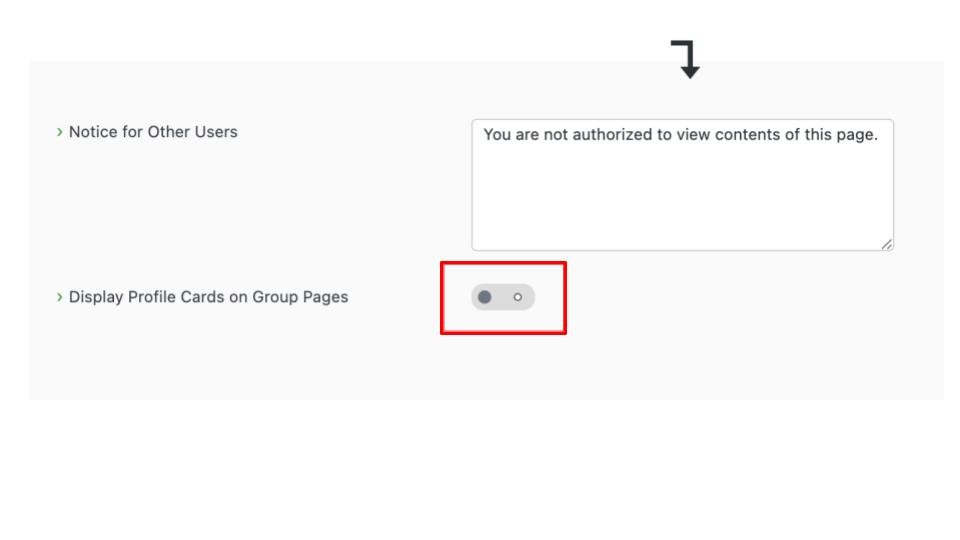
Step 8: Once you configure all the settings, make sure to save them.
More privacy settings
This is how your frontend groups look when you enable WordPress Private Profile Mode on ProfileGrid Private Profile Setting:

Further, this is how your frontend groups will look if you enable ‘Display Profile Cards on Group Pages toggle:

You can use both the settings and change the display message according to your needs.
Closing Note
In this article, we’ve shown you how to make user profiles private in WordPress groups using the ProfileGrid plugin. You can easily control who sees profile information and even display user profiles without allowing access to the profile links. Try out these settings on your site and let us know how it works for you in the comments. If you have any other questions or need further help, feel free to ask, and we’ll be happy to assist!
I would need to restrict user Profile visibility within a group. If a User is loggen in to a group, he will be able to see all User Profiles of this group only. Is this possible?
You can use the content restriction feature of the plugin to ensure that only members of a specific group can view the group page content. This way, access to group details and profiles will be limited to group members only.
Thank you for your quick response.
I am a bit confused now. Yesterday after testing the private settings, I realised that there seems to be no privacy settings for a group. I posted a serious question comment about this, hoping to get an answer. And now I cannot find my comment anywhere.
I really would appreciate your answer, because this privacy of a group and the members of the group is a necessity for the project I am working on. Thanks a lot in advance.
You may restrict the group page for only group members using the content restriction feature. If you still face issues, please raise a ticket at our support portal here.
how can I hide profiles for guests (not logged in) and hide email to everyone (perhaps except admins)?
You can use the plugin’s content restriction feature to hide the user profile page for guest users. To hide the email on the profile page, disable the ‘Display on Profile Page’ option in the field settings from the dashboard.